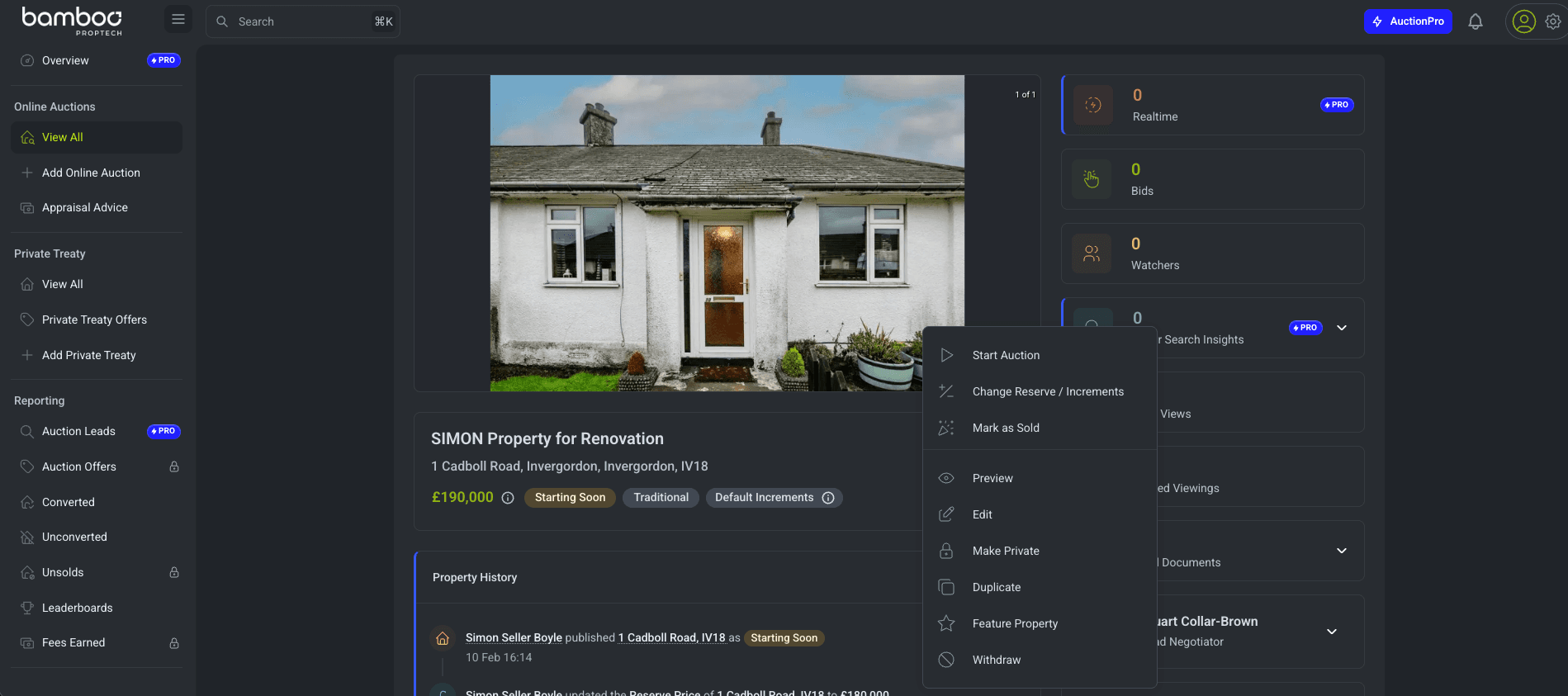

Managing Properties
How to add, edit, publish, and manage online auction properties in the Bamboo dashboard.
This video highlights the latest updates as of May 2026. It's intended to showcase what's new and what's changed, rather than provide a full, step-by-step walkthrough. For detailed guidance on adding a property from start to finish, please refer to the full help documentation below.
Viewing Your Properties
Navigate to Online Auctions > View All in the sidebar to see all your properties. This section shows:
- Property overview - Thumbnail, address, and title.
- Status - The current stage of the property (Draft, Pending, Active, etc.).
- Lot number - The assigned lot number, if part of an auction.
- Current price - The highest bid or starting price.
- Reserve price - The minimum price the seller will accept.
- Bids - Total number of bids received.
- Watchers - Number of users watching the property.
- End date - When the auction closes.
Filtering and Searching
Use the toolbar at the top to filter properties by:
- Search - Search by property address or title.
- Status - Filter by property status (e.g. Active, Draft, Sold).
- Organisation / Branch - Narrow results to a specific branch.
- Date range - Filter by auction end date.
Adding a New Property
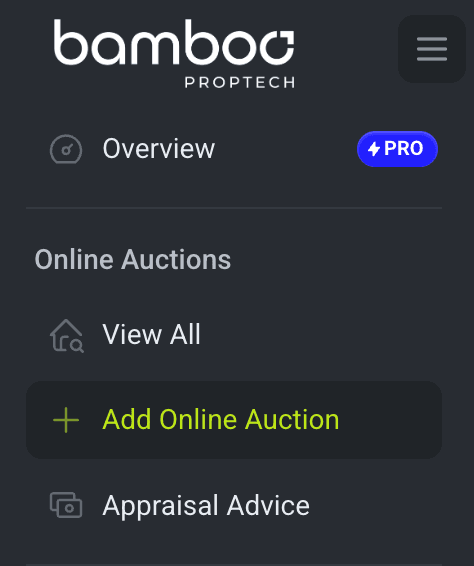
- Navigate to Online Auctions > Add Online Auction in the sidebar, or click the Add Property button on the properties list page.
-
You will be guided through the property form, starting with address lookup. The form uses a sticky header bar at the top that displays the form title, a Save Draft button, and a real-time save indicator showing the current state of the form (e.g. "Unsaved changes", "Saving...", "Saved", or "Required fields").
-
The form is organised into tabs with icons. Each tab displays a status icon to help you track your progress:
- Green checkmark - All required fields in the tab are complete.
- Yellow pencil - The tab has been modified but not yet saved.
- Red alert - The tab contains validation errors that need correcting.
Complete the property form across the following tabs:
Location Tab
The Location tab is the first step when adding a new property. It uses an address lookup flow to help you get started quickly:
- Search for an address - Enter a postcode or address to search via the integrated address lookup. Results appear in a dropdown as you type.
- Confirm the address - Review and edit the auto-populated address fields (Address Line One, Address Line Two, City, Postcode) before confirming.
- Duplicate check - The system automatically checks whether the property already exists in Bamboo. If a match is found, you can choose to edit the existing property or proceed with adding a new one.
- CRM import (if your organisation has a connected CRM) - The system checks for a matching property in your connected CRM (Reapit, Street, or Alto). If found, you can import the property data to pre-populate the form, saving time on data entry. You can also browse your CRM's properties directly using the Browse button (e.g. Browse Street CRM).
Once the address is confirmed:
- The Title field is automatically populated with the address.
- Geolocation coordinates are looked up automatically and displayed on an interactive map.
- You can manually adjust the address fields or map pin if needed.
If you prefer, you can skip the lookup and click Enter address manually to fill in the fields yourself.
Listing Tab
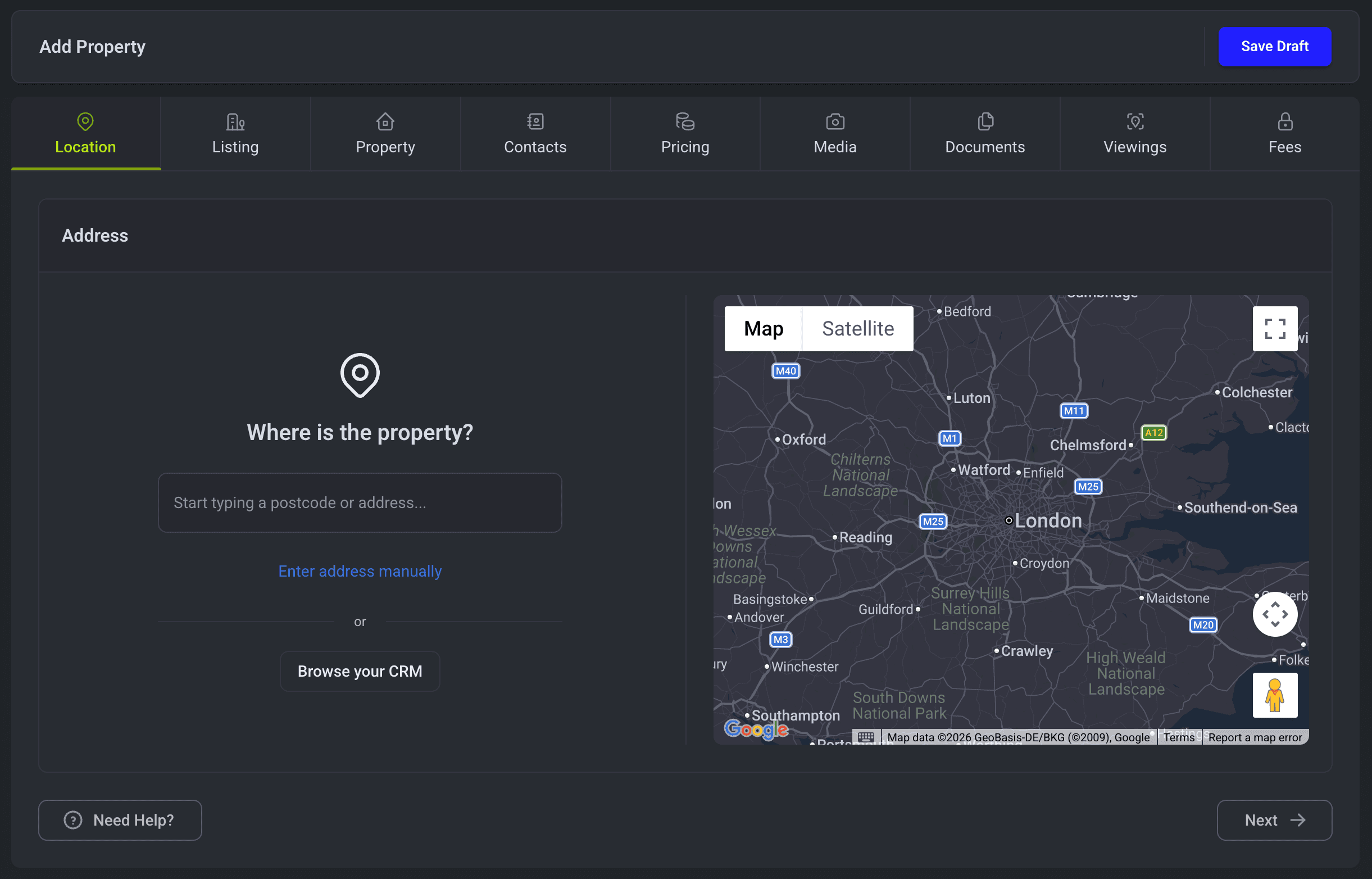
Configure the auction listing details:
- Title - A headline for the listing.
- Method of Sale -
- Auction Type - Select Traditional or Conditional auction.
- Branch -
- Lead Negotiator -
- Join Agent -
- Sister Whitelabels -
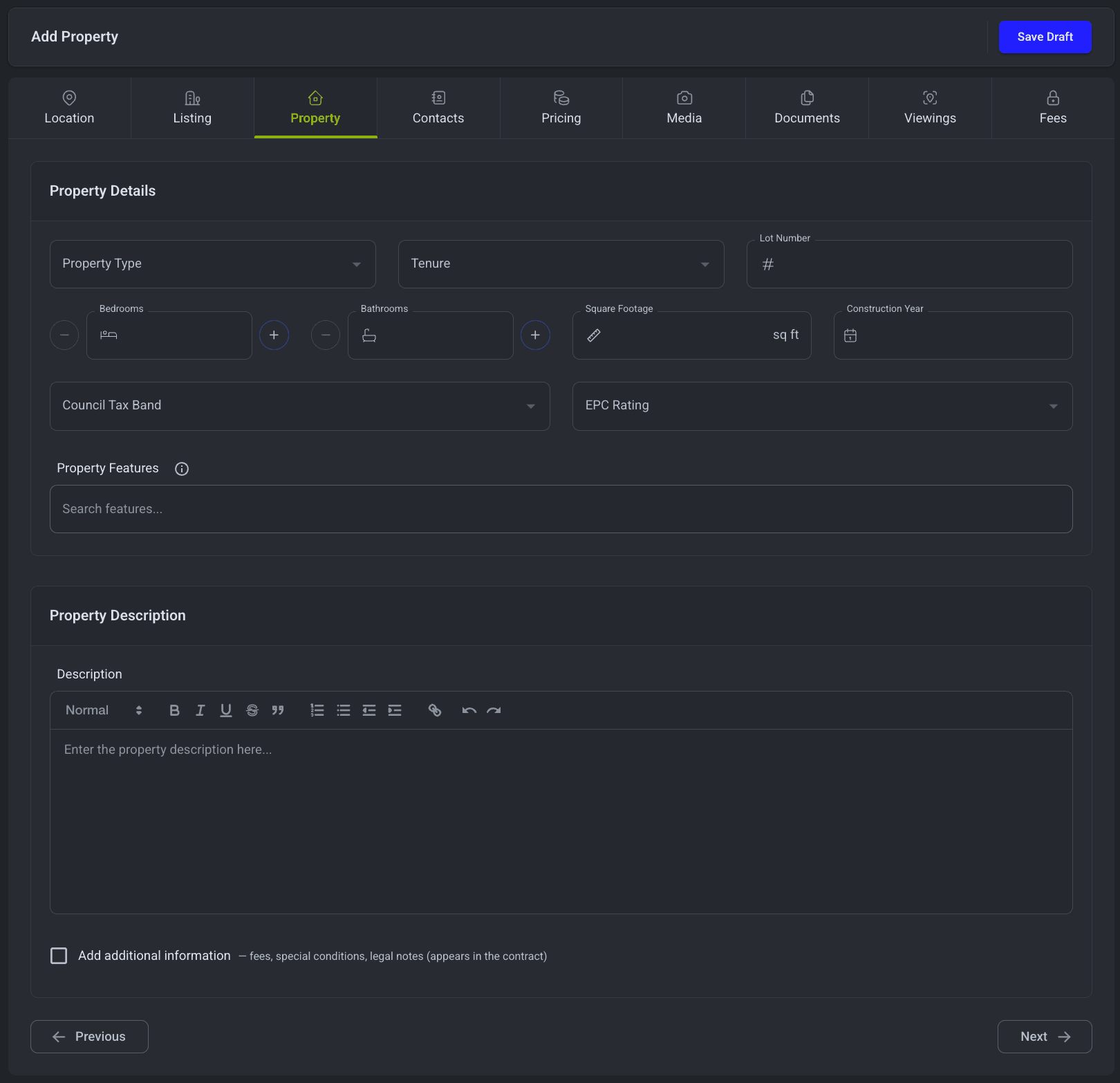
Property Tab
Enter the property details that buyers will see:
- Property Type - Detached, semi-detached, land, commercial, etc.
- Tenure - Freehold, leasehold, or other.
- Bedrooms, bathrooms, receptions - Room counts.
- Lot Number - Optionally assign a lot number.
- Council Tax Band -
- EPC Rating - Energy Performance Certificate rating.
- Property Condition (optional) - A rating of the property's overall physical condition. This is for internal use only and is not shown to buyers. See Classifying property condition below.
- Property Features -
- Description - Full property description (supports rich text).
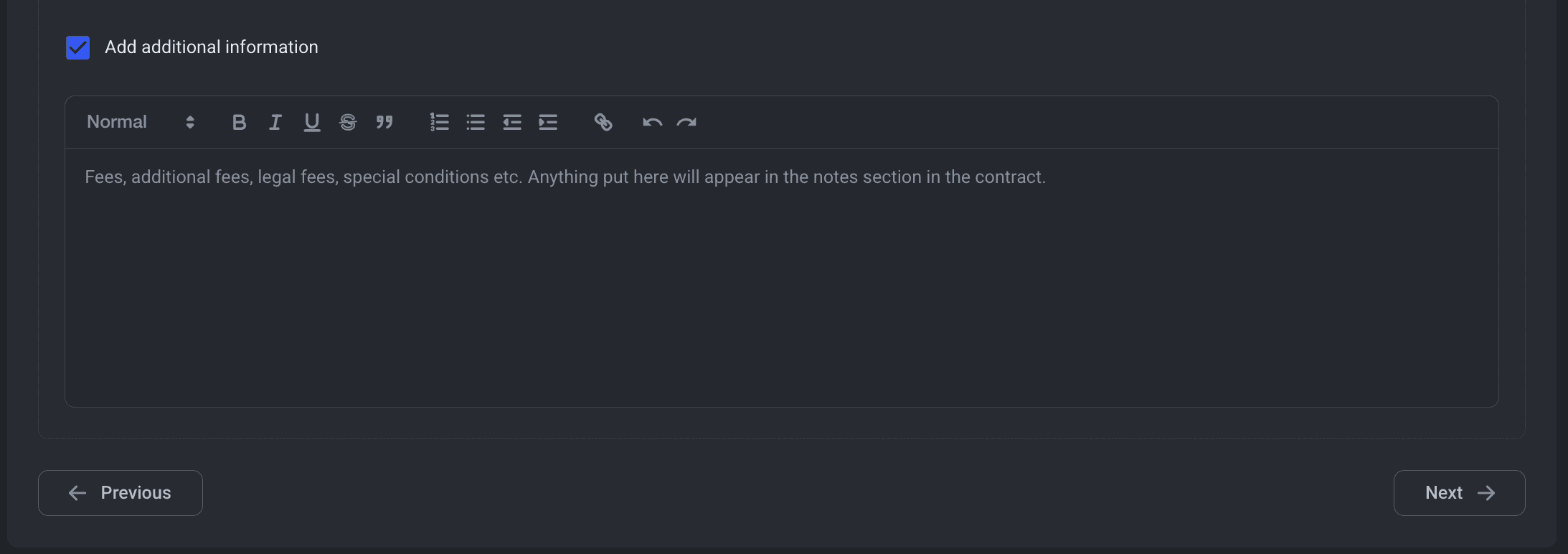
- Other Key Information -
Classifying property condition
Property Condition is an optional rating that captures the overall physical state of a property, giving your team a consistent shorthand and helping Bamboo's pricing tools produce more accurate reserve suggestions. It sits in the optional section of the Property tab.
Property Condition is for internal use only. It is never shown to buyers on your auction website or in listings.
Choose the option that best describes the property:
- Derelict - Uninhabitable. Significant structural problems, fire or water damage, a missing roof, or otherwise unsafe.
- Poor - Needs major renovation. Full refurbishment or modernisation required throughout.
- Fair - Liveable but dated. Tired decor, original kitchen or bathroom, in need of some updating.
- Good - Well maintained and presented in good order. Move-in ready with no obvious work required.
- Excellent - Recently renovated or high spec. Newly refurbished, a luxury finish, or brand new.
If you're unsure, pick the closest match - you can change it at any time.
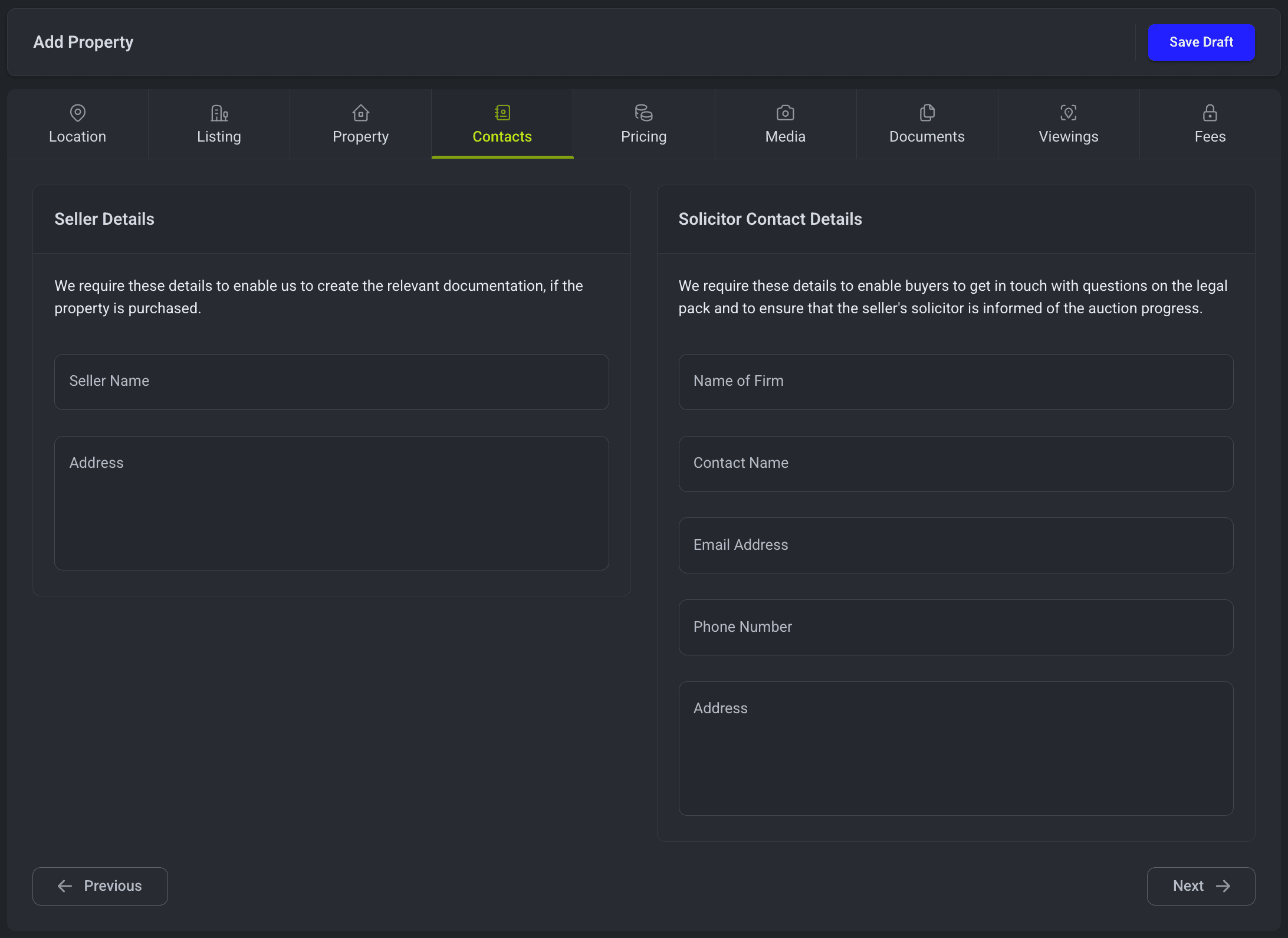
Contacts Tab
Provide the contact details required for sale documentation, displayed in a two-column layout:
- Seller Details (left column) - Name and address of the property seller.
- Solicitor Details (right column) - The seller's solicitor name and contact information for conveyancing purposes.
Pricing Tab
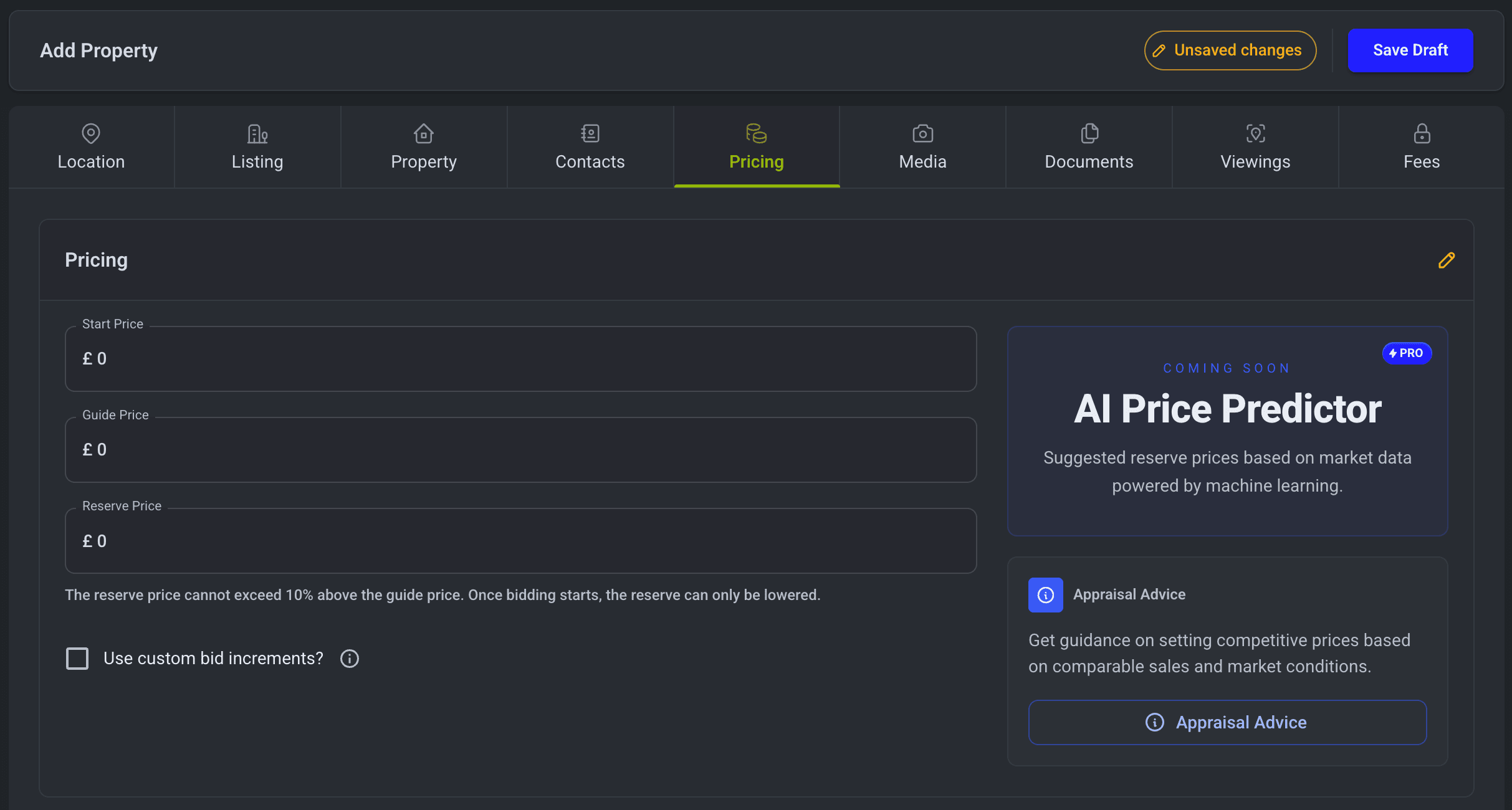
Configure the financial details:
- Start Price - The opening bid amount for the auction.
- Guide Price - The price shown publicly to prospective buyers.
- Reserve Price - The minimum price the seller will accept. The property will not sell below this amount.
- Bid Increment - The minimum amount each new bid must increase by.
- ReserveIQ - AI pricing suggestion.
- Appraisal Advice - Get guidance on setting competitive prices based on comparable sales and market conditions.
- Allow offers when property is 'Starting Soon' or had 'Ended' -
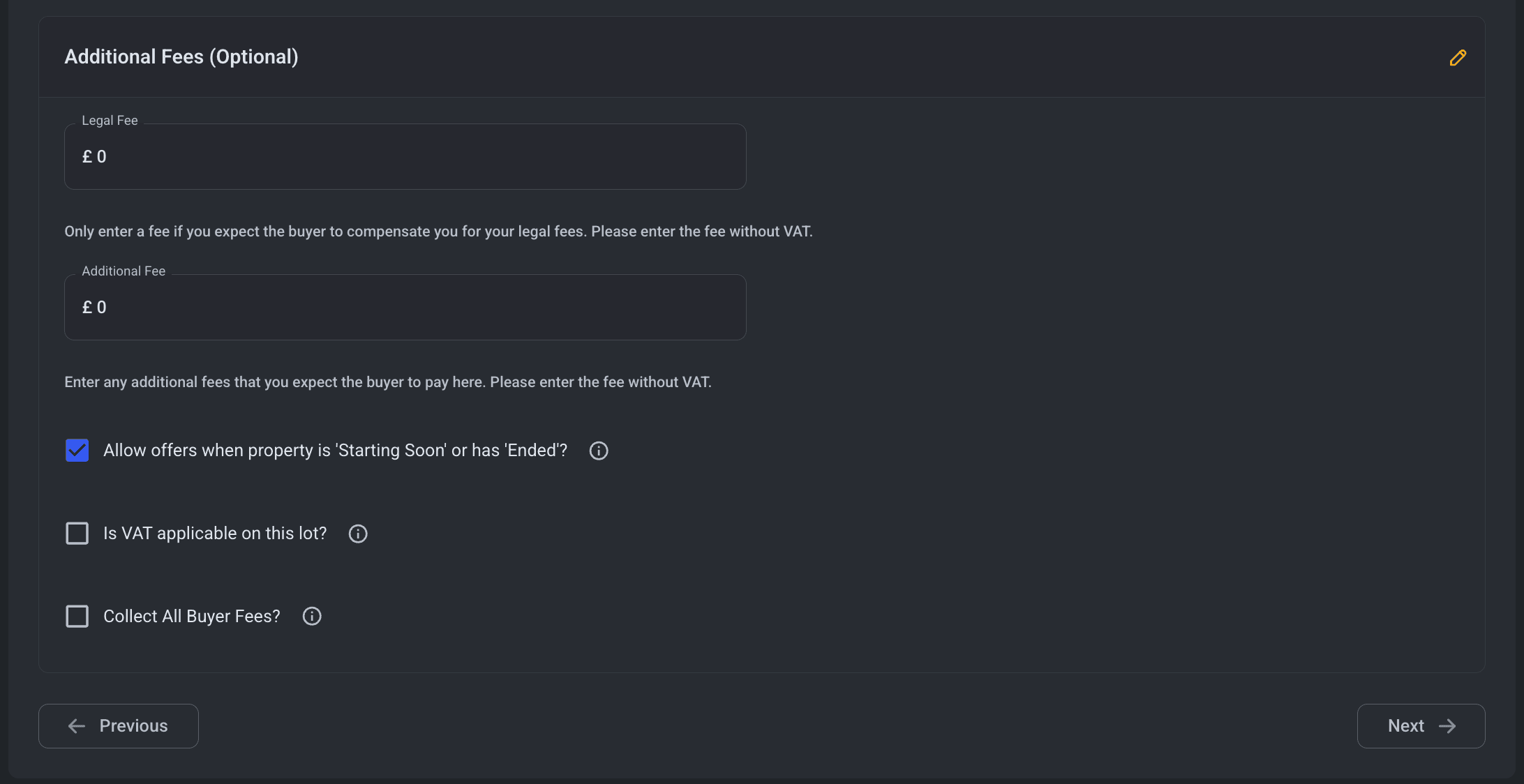
- Is VAT applicable on this property? - Toggle if VAT applies to the sale.
Fees Tab
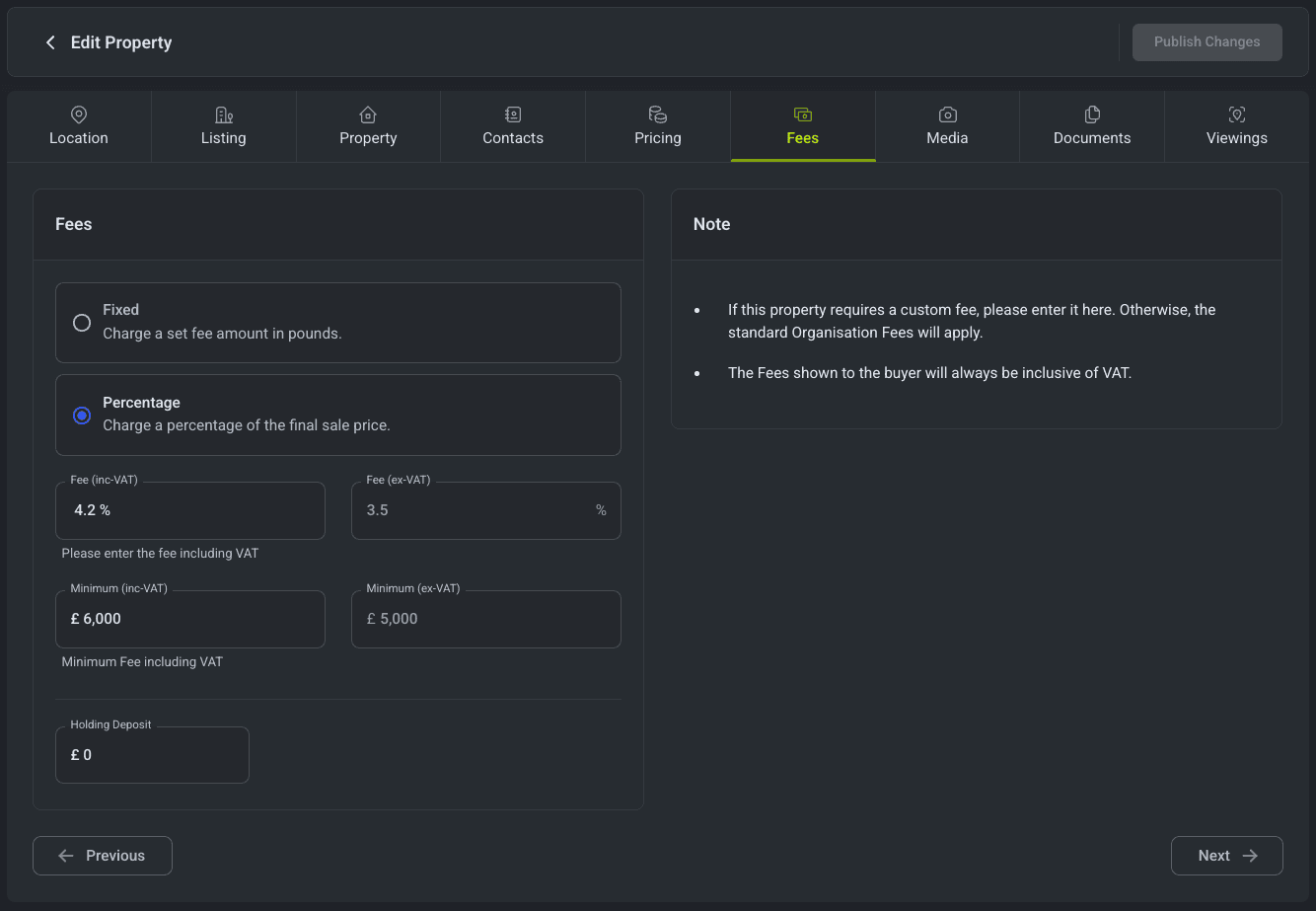
Override the auction fee for an individual property. This tab is only available to agencies who have been enabled to update auction fees, and to internal users.
If you don't make any changes here, the property uses your organisation's default fees. The defaults are configured at the organisation level and depend on auction type (and, for Traditional, on the guide price relative to the lower-band threshold).
- Fee Unit - Choose Fixed (a set amount in £) or Percentage (a percentage of the final sale price). Selecting a unit pre-fills the value with your organisation default for that unit; you can then override it.
- Fee (inc-VAT) - The fee charged to the buyer including VAT. Enter the inc-VAT figure - the ex-VAT equivalent is shown alongside for reference.
- Minimum (inc-VAT) (percentage only) - The minimum fee charged when the percentage of the sale price would be lower than this amount.
- Holding Deposit (traditional auctions only) - The deposit the buyer pays when the auction ends. Defaults to your organisation's value based on the guide price band; can be overridden.
Auto-recalculation when auction type changes
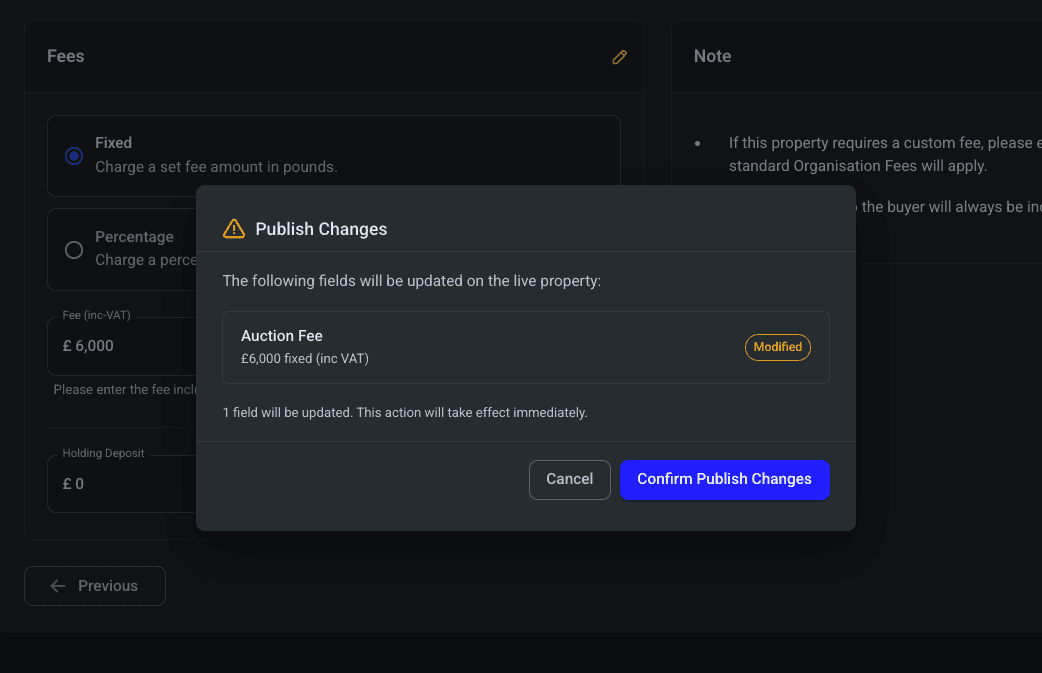
If you switch the Auction Type (Traditional ↔ Conditional) on the Listing tab and save, the auction fee is automatically recalculated from your organisation's default for the new type. You will see a confirmation dialog before saving that lists the changed fields and shows the new auction fee value, with a note explaining that the fee was recalculated. If you need a different fee, update it on the Fees tab afterwards.
The same confirmation dialog appears when you save fee changes directly so you can verify the resulting value before it is committed.
Media Tab
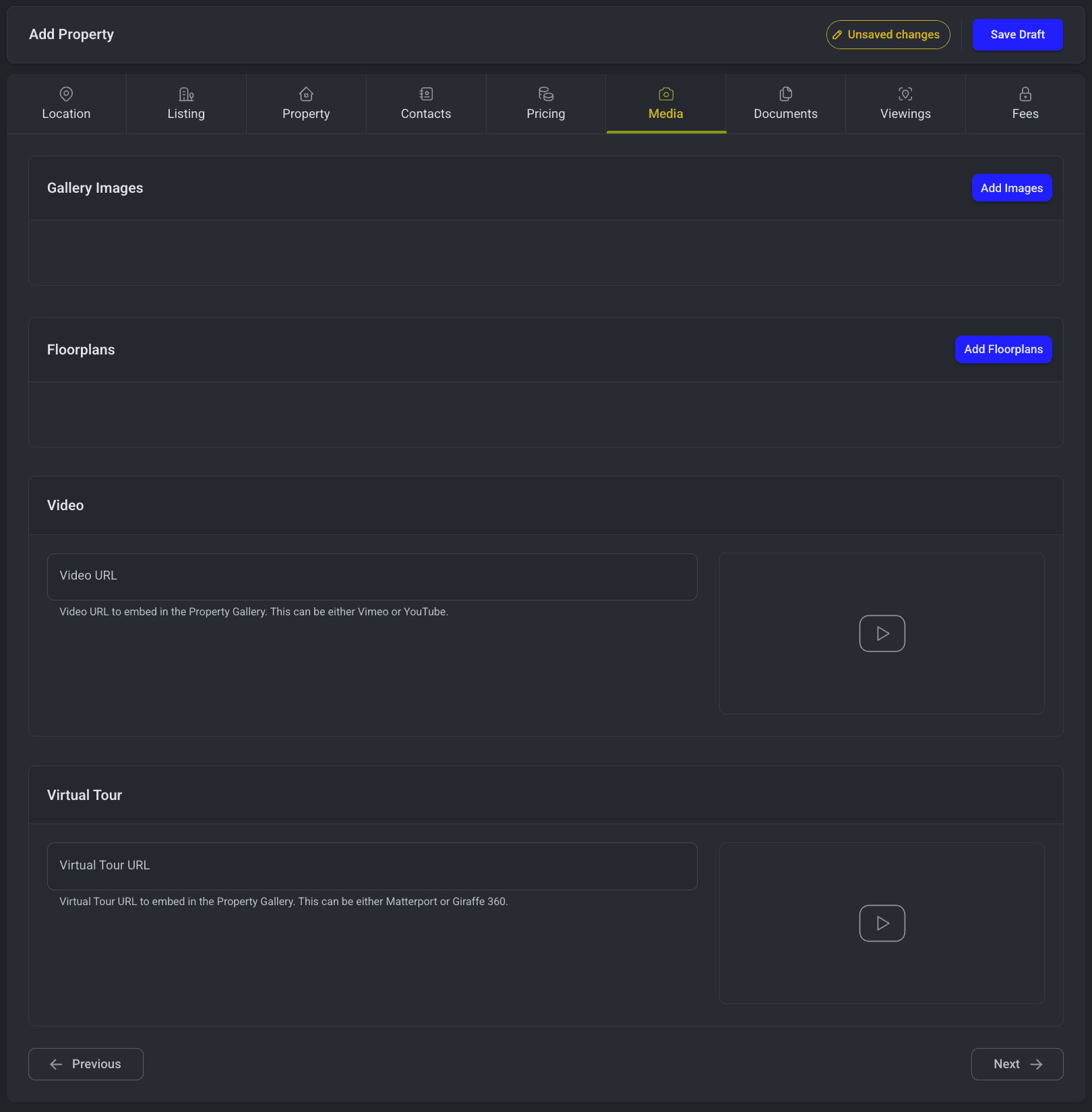
Upload images and videos for the property listing:
- Gallery Images - Upload multiple property images. Drag to reorder. The first image becomes the thumbnail.
- Floorplans - Upload floorplan images.
- Videos - Add video URLs (e.g. YouTube links).
- Virtual Tours - Add virtual tour links.
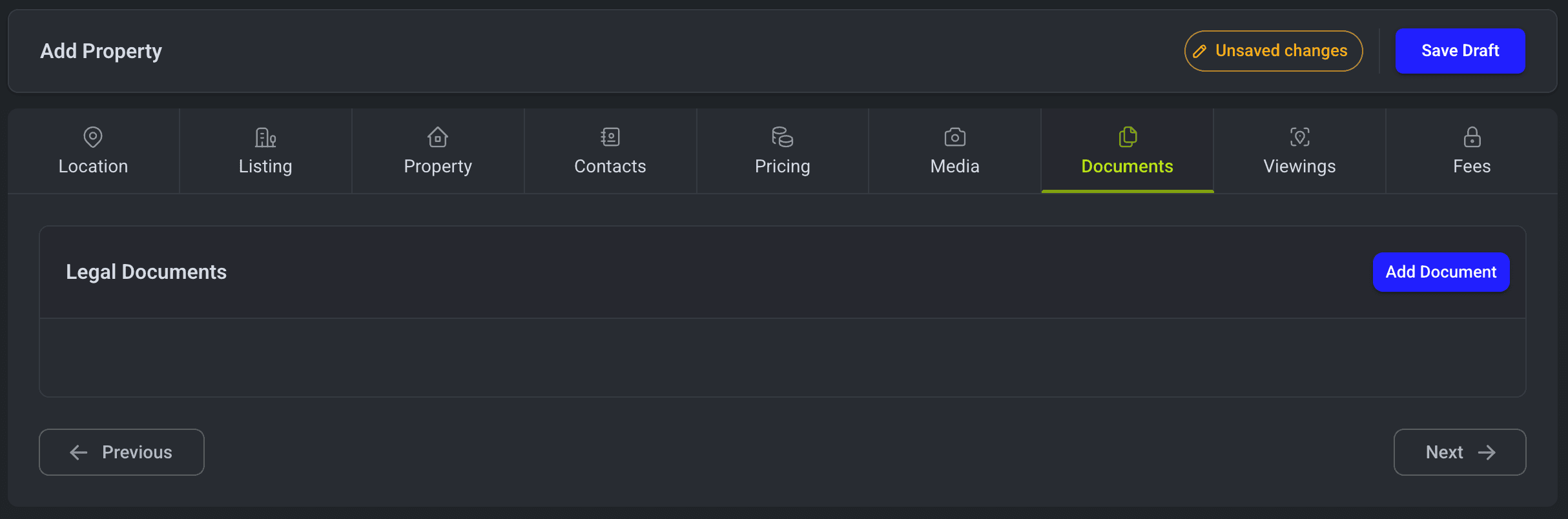
Documents Tab
Upload important documents for the property:
- Legal Pack - The legal pack PDF that buyers can download.
- Special Conditions - Any additional conditions of sale.
- Other Documents - Any supplementary documents.
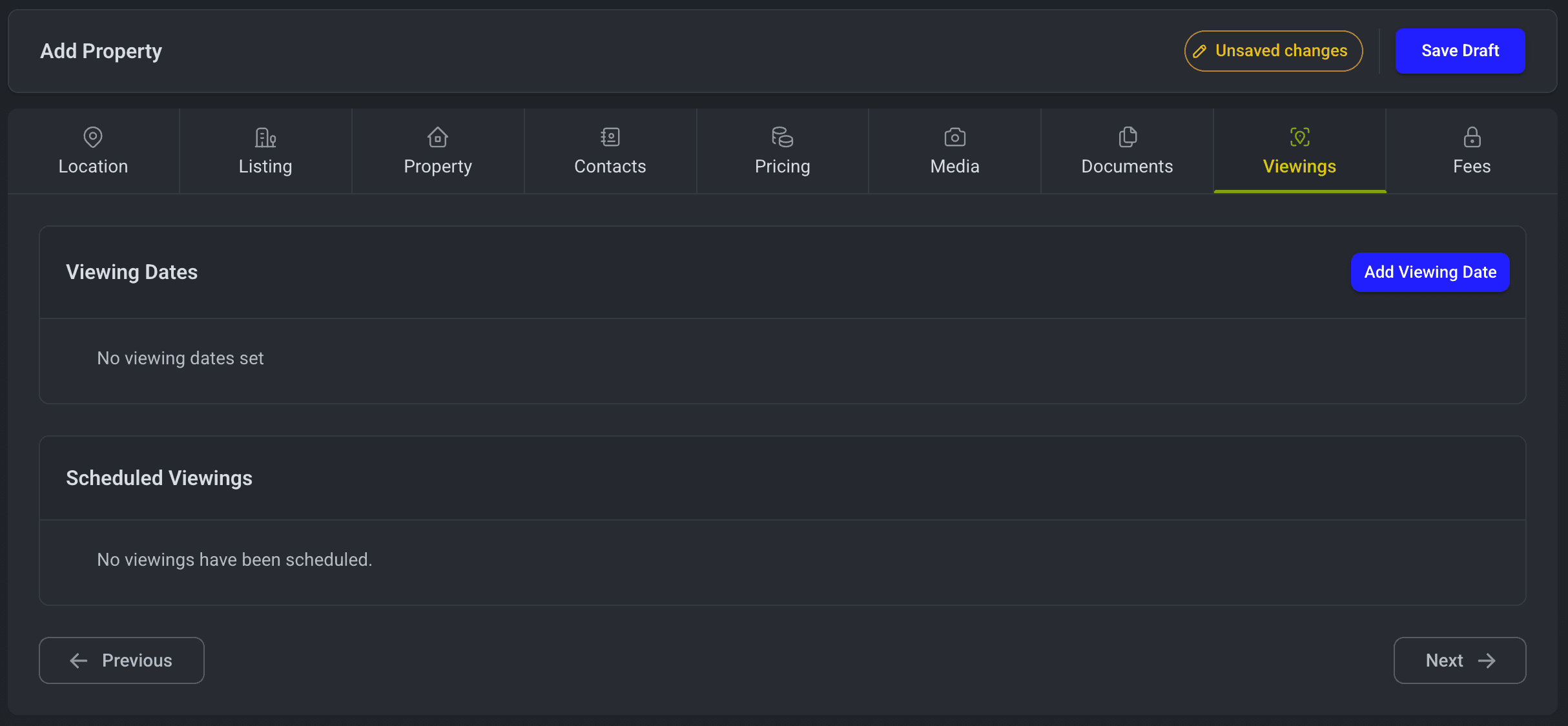
Viewings Tab
Manage property viewing slots:
- Viewing Dates - Schedule open viewing sessions.
- Scheduled Viewings - View and manage individual viewing appointments.
Editing a Property
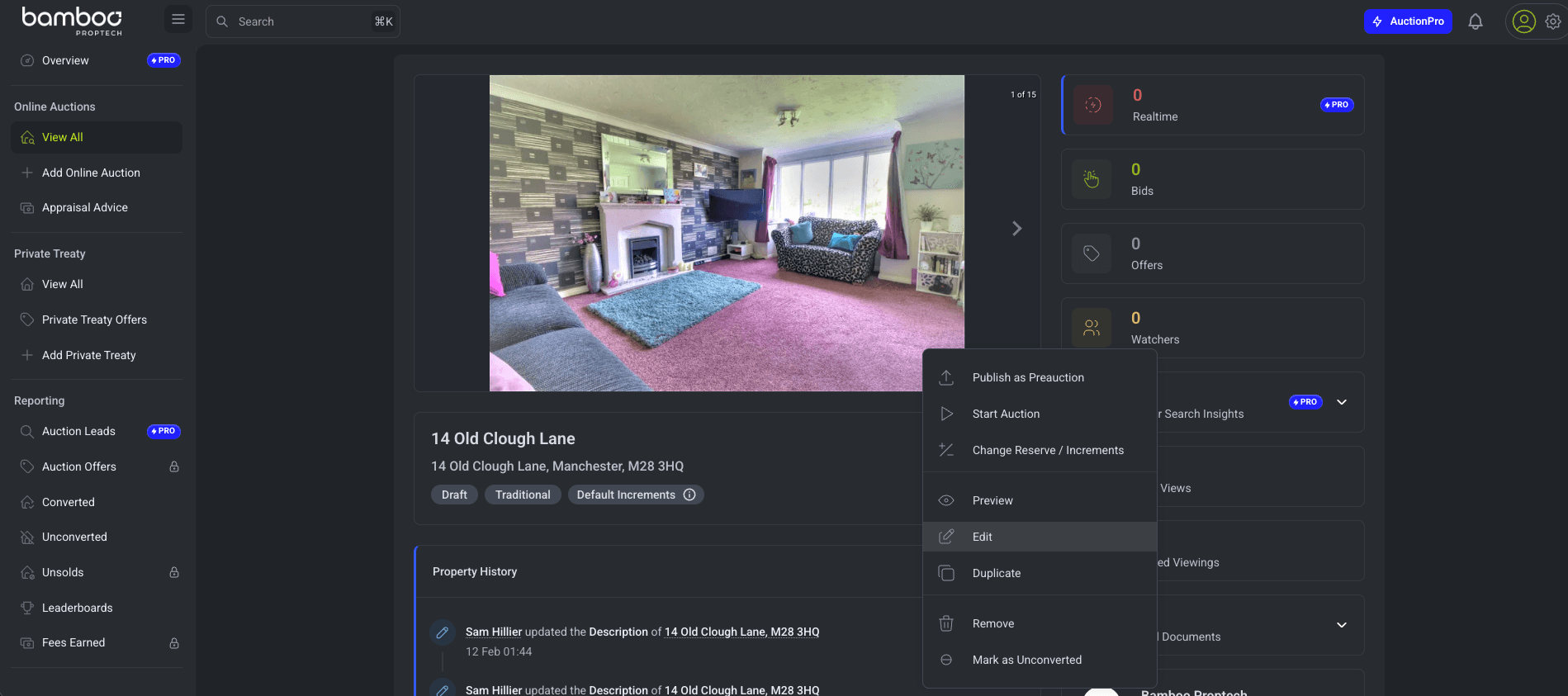
Click on any property in the list to open it, then select Edit from the Action Menu at the top of the property page. The same tabbed form is displayed, pre-filled with the existing data. Make your changes and click Save or Save as Draft.
Publishing a Property
Once you've completed all required fields, you can publish the property to make it visible on your auction website. From the properties list, use the action buttons to publish a draft property.
Properties must have at minimum a title, address, guide price, start date, and end date before they can be published.
Property Actions
From the properties list, you can perform several actions on individual properties:
- Publish - Make a draft property live.
- Mark as Sold - Record a successful sale with the final price.
- Mark as Unconverted - Record that the sale did not complete after auction.
- Remove - Remove a property from the platform.
- Change End Date - Extend or shorten the auction period.
- Feature Property - Highlight a property on your website.
- Place Auctioneer Bid - Place a bid on behalf of an in-room or phone bidder.