

Private Treaties
How to manage private treaty properties in the Bamboo dashboard.
Bamboo Proptech supports private treaty sales through OfferNow, an end-to-end tool that lets buyers submit offers without leaving your site.
Never miss an offer with instant capture and seamless CRM sync
OfferNow is a standalone product that supports private treaty sales, whether or not you run auctions through Bamboo. If you'd like to start capturing offers directly from your own property listings, contact your account manager to learn more.
Viewing Private Treaties
Private treaty properties don't need to be manually added to Bamboo.
When a buyer views one of your listings, the OfferNow widget detects the property and looks it up against your connected CRM. On the first match, the property is created automatically in Bamboo and appears in the Private Treaty > View All list, ready to receive offers.
The list displays all your private treaty properties with their current status, pricing, and activity.
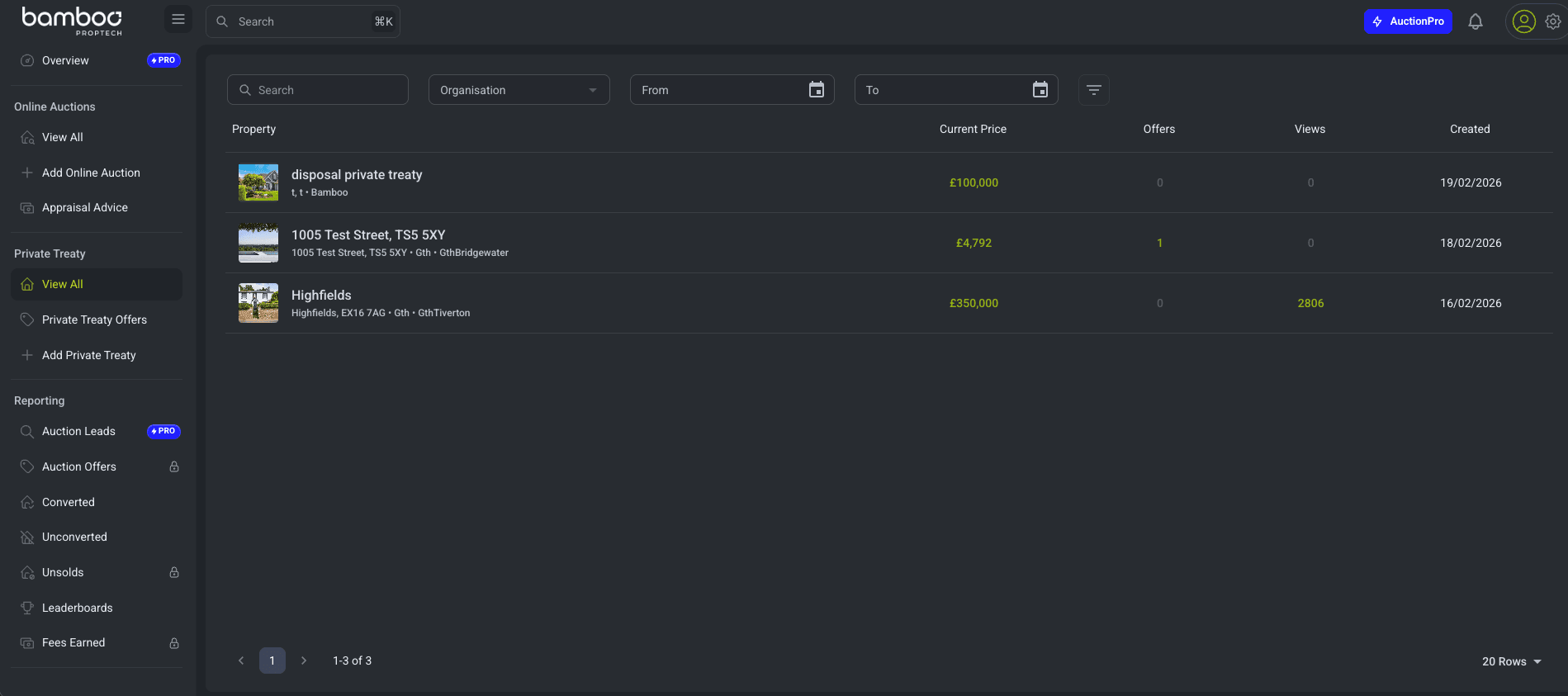
Controlling OfferNow Visibility
Each private treaty property has a status badge showing whether the OfferNow button is currently visible to buyers on your external listing. You can toggle this on a per-property basis at any time, without affecting any other properties in your organisation.

Hiding OfferNow for a Property
To stop the OfferNow button from appearing on a specific property's external listing:
Open the property's detail page.
Click Action Menu in the top right.
Select Hide OfferNow.
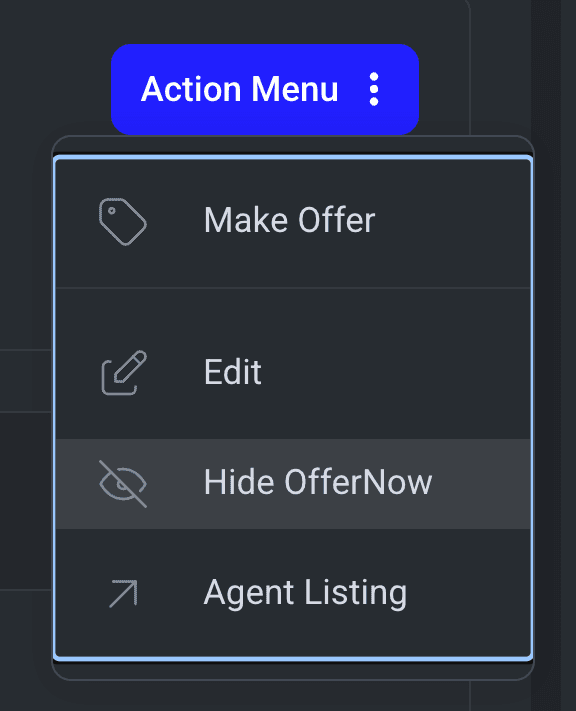
Confirm in the dialog. The offer button will no longer appear on your external listing for this property.
Once hidden, the status badge updates to OfferNow Hidden.

Re-activating OfferNow for a Property
To re-enable the OfferNow button for a property that has been hidden:
Open the property's detail page.
Click Action Menu in the top right.
Select Activate OfferNow.
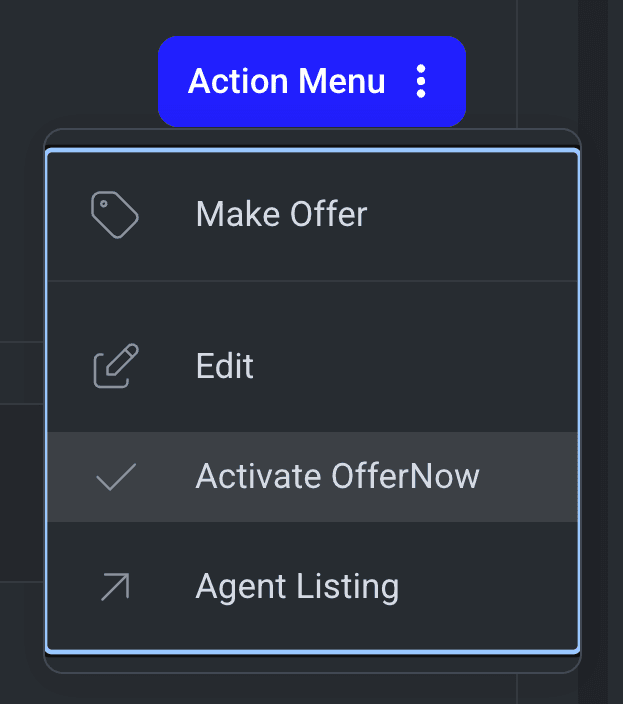
The badge returns to OfferNow Active and the OfferNow button reappears on your external listing.
Generating an Offer Report
The Offer Report is a vendor-facing PDF that consolidates every offer received on a property, alongside your recommendation and supporting commentary. Use it to present offers to the seller in a single, professional document rather than forwarding them one by one.
To generate a report:
Open the property's detail page and scroll to the offers list. The Generate Offer Report button sits below the list of offers and is disabled until at least one offer has been received.
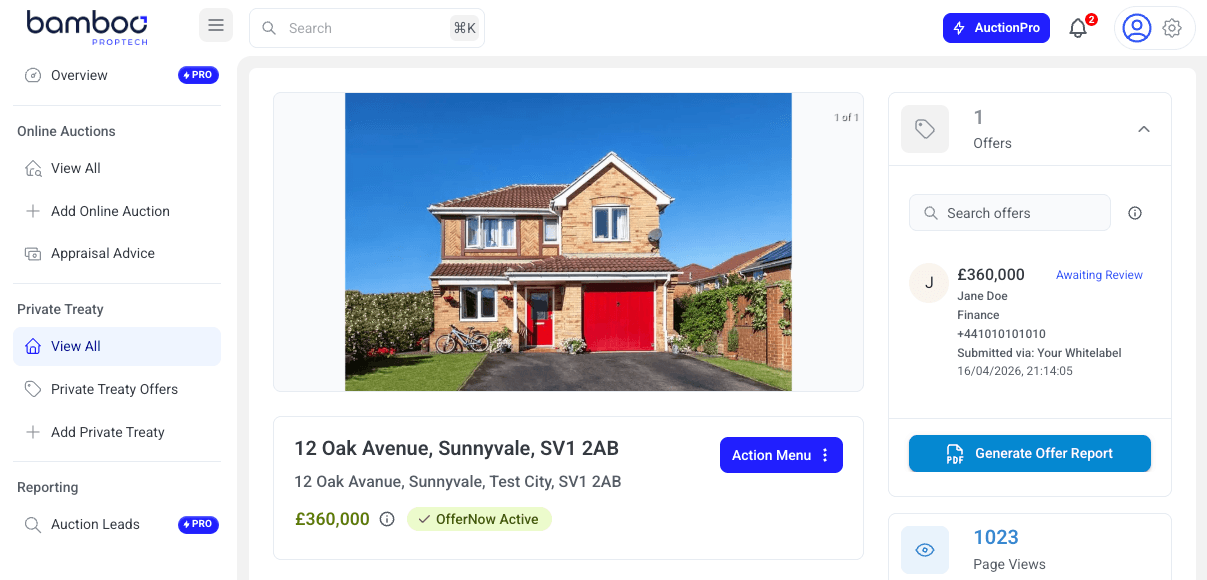
Click Generate Offer Report to open the dialog.
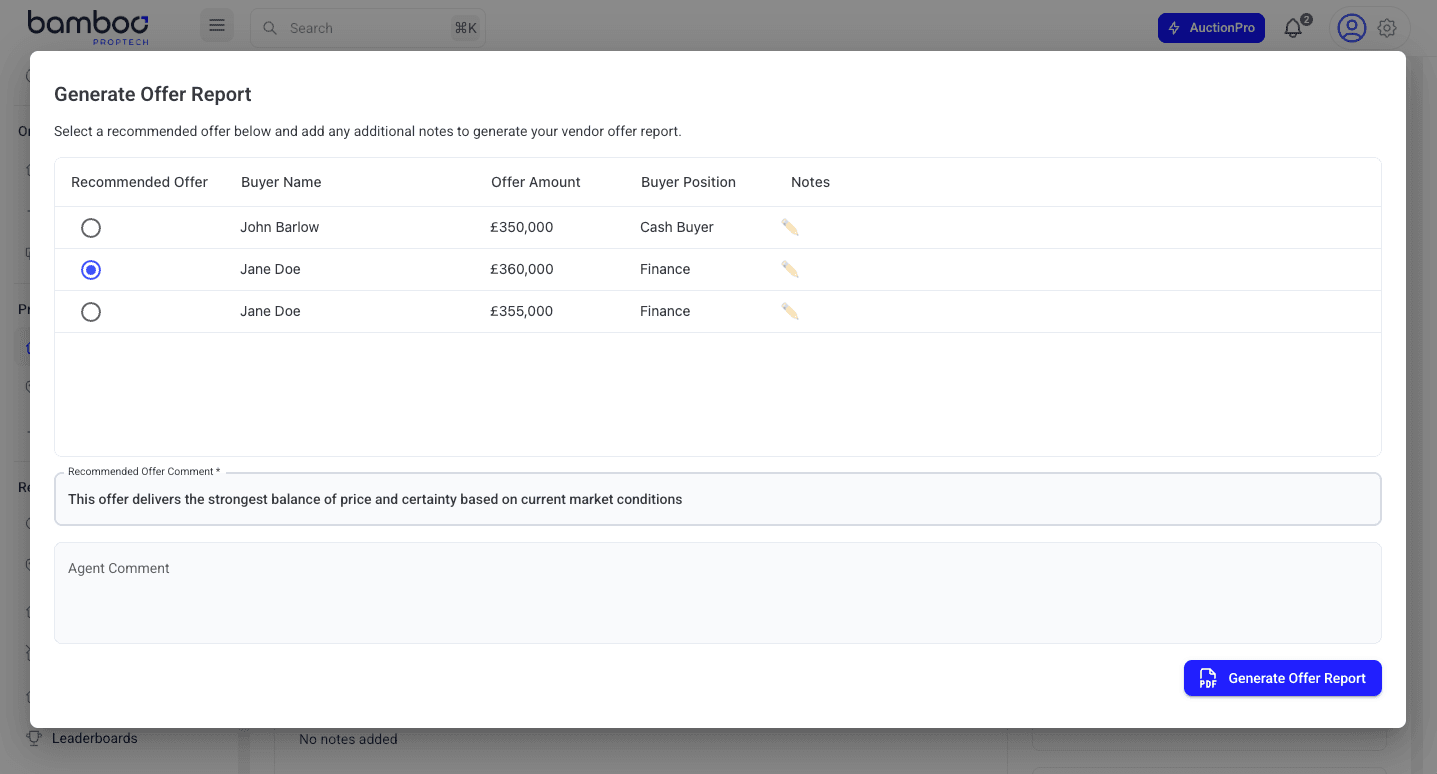
Review the list of offers. Edit the Notes column inline to add context for any offer (for example, the buyer's funding position or chain status).
Select the Recommended Offer by ticking the radio button next to it.
Fill in:
- Recommended Offer Comment (required): a short rationale for why you're recommending this offer.
- Agent Comment (optional): any additional notes for the vendor.
Click Generate Offer Report. The PDF opens in the dialog, ready to share with your seller.